 By Henry James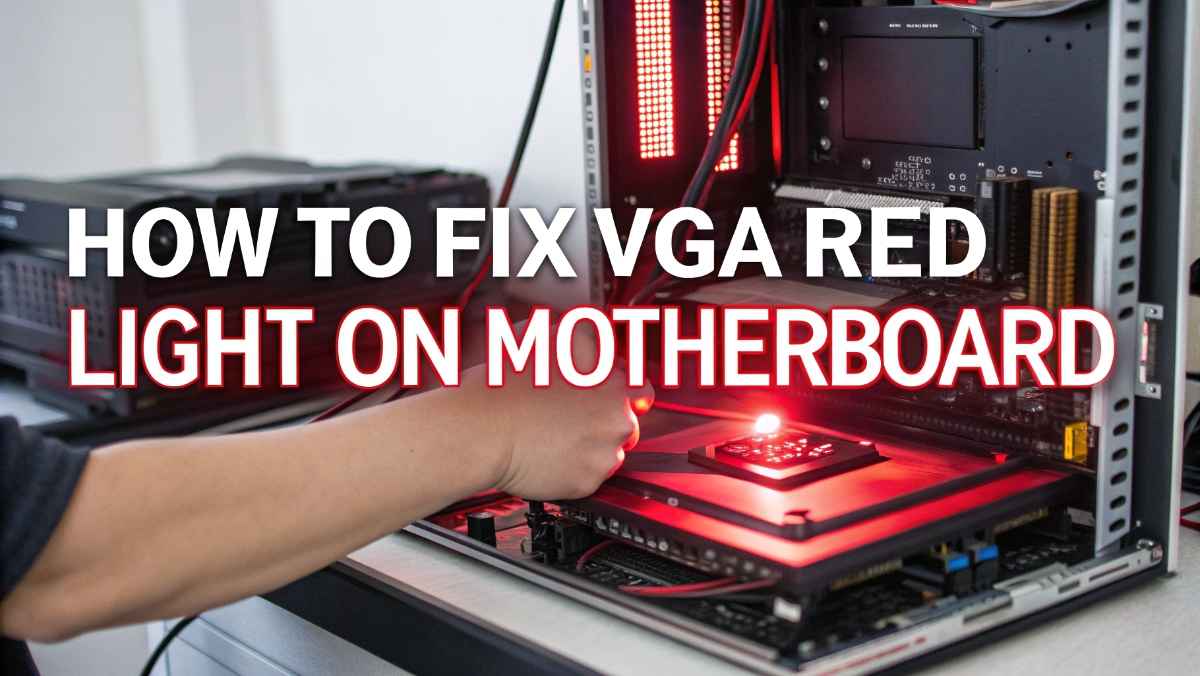
If you turn on your computer and see a red light near the VGA label on your motherboard, it can feel worrying. Many people think something is badly broken. But in most cases, this issue is fixable with simple steps.
In this guide, you will learn what the VGA red light means, why it happens, and how to fix it step by step. The language is simple, so even beginners can follow along.
The VGA red light on a motherboard shows there is a problem with the graphics system. This could be your graphics card, cables, or even your monitor.
When your PC starts, the motherboard checks all parts. This is called POST (Power-On Self-Test). If it finds a problem with the graphics, it turns on the VGA light.
Before fixing the issue, it helps to know why it happens.
Here are the most common causes:
- Graphics card is not seated properly
- Power cables are loose or missing
- Faulty or damaged GPU
- Monitor cable problem
- RAM issues affecting boot
- BIOS settings problem
- Dust buildup inside the PC
Now let’s go step by step to fix it.
Start with the basics.
- Turn off your PC
- Unplug the power cable
- Press the power button for a few seconds to release leftover power
Now check:
- GPU power cables are fully plugged in
- Monitor cable is connected tightly
- No loose wires inside
Many times, a loose cable is the only problem.
This is one of the most effective fixes.
- Open your PC case
- Unscrew the graphics card
- Carefully remove it from the slot
- Clean the slot gently (no water, use air if possible)
- Put the GPU back firmly
Make sure it clicks into place. Then screw it back in.
Turn on your PC again and check if the light is gone.
Most modern graphics cards need extra power.
Look for cables going into the GPU. These are usually 6-pin or 8-pin connectors.
Make sure:
- They are fully inserted
- No pins are loose
- Your power supply is strong enough
If your PSU is weak, the GPU may not work properly.
Sometimes the issue is not inside the PC.
Try this:
- Use a different HDMI or DisplayPort cable
- Connect to another monitor
- Try a different port on your GPU
If the VGA light turns off, your cable or monitor was the problem.
This may sound strange, but RAM can also cause VGA errors.
- Take out the RAM sticks
- Clean them lightly
- Insert them back firmly
You can also try using one stick at a time to test.
If your BIOS settings are wrong, your system may fail to detect the GPU.
- Turn off and unplug your PC
- Find the CMOS battery on the motherboard
- Remove it for 5–10 minutes
- Put it back
This resets BIOS to default settings.
If your CPU has built-in graphics, test it.
- Remove your graphics card
- Connect your monitor to the motherboard port
If your PC boots fine, your GPU might be faulty.
Dust can block connections and cause issues.
- Clean your PC using compressed air
- Focus on GPU fans and slots
- Make sure fans are spinning properly
Good airflow keeps your system stable.
Sometimes old BIOS versions cause compatibility problems.
- Visit your motherboard manufacturer’s website
- Download the latest BIOS version
- Follow their update instructions carefully
Be careful during this process. Do not turn off power while updating.
If nothing works, test with a different GPU.
- Borrow a working graphics card
- Install it in your system
If the VGA light goes away, your old GPU is likely damaged.
A failing PSU can cause GPU issues.
Signs of PSU problems:
- PC turns off randomly
- Fans spin but no display
- Burning smell or noise
If you suspect PSU issues, try another one.
Look closely at the PCIe slot.
Check for:
- Bent pins
- Dirt or debris
- Physical damage
If the slot is damaged, you may need a motherboard repair or replacement.
If you tried everything and the VGA light stays on, your GPU may be dead.
You should replace it if:
- It does not work in another PC
- No display at all
- Fans don’t spin
Buying a new GPU might be the only solution in this case.
Prevention is always better.
Follow these tips:
- Keep your PC clean from dust
- Use a good quality power supply
- Do not force cables into ports
- Handle parts carefully
- Keep drivers and BIOS updated
These simple habits can save you from many problems.
If you want a fast summary, here’s what to do:
- Check all cables
- Reseat GPU
- Check power connectors
- Test monitor and cable
- Reinstall RAM
- Reset BIOS
- Clean dust
- Try another GPU
The VGA red light on a motherboard looks scary, but it is usually not a big problem. Most of the time, it happens because of loose connections or simple hardware issues.
By following the steps in this guide, you can fix the problem at home without needing expert help.
Take your time, follow each step carefully, and your PC should be back to normal soon.