 By Henry James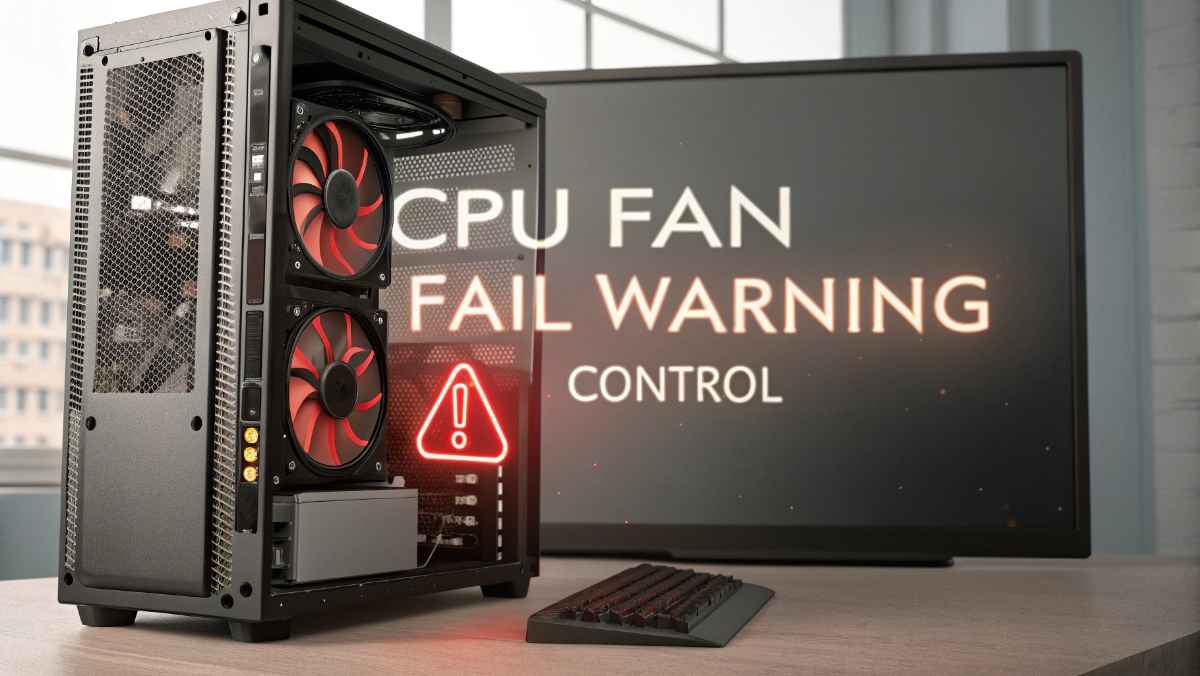
When you turn on your computer and see a message like “CPU Fan Fail Warning,” it can feel scary. Many people think something is badly broken. But in most cases, this warning is easy to understand and fix.
In this guide, you will learn what the CPU fan fail warning means, why it happens, and how to control or fix it step by step. Everything is explained in easy English so anyone can follow.
A CPU fan fail warning is a message your computer shows when it thinks the CPU fan is not working properly.
The CPU fan is very important. It keeps your processor cool. If the fan stops, the CPU can get too hot. That can slow down your system or even damage parts.
So, your system shows this warning to protect itself.
There are many reasons why this warning shows up. Some are serious, and some are very simple.
This is the most common reason. If the fan is not spinning, the system detects no movement.
If the fan cable is not connected properly to the motherboard, the system cannot detect it.
Dust can block the fan. This makes it slow or stop.
Sometimes, the fan is working fine, but BIOS settings are not set correctly.
Some fans spin slowly by design. The system may think the fan has failed.
The fan itself may be damaged or worn out.
Yes, it can be.
If the fan really stops working, your CPU can overheat. Overheating can cause:
- System shutdowns
- Slow performance
- Permanent damage
But if it’s just a setting issue, then it is not dangerous.
Before changing any settings, do these simple checks.
Open your PC case and check if the fan is spinning.
- If it is spinning → good sign
- If it is not spinning → problem confirmed
A working fan usually makes a soft spinning noise.
No sound can mean:
- Fan not working
- Fan spinning very slowly
Sometimes it’s just a temporary issue. Restart and check again.
Now let’s go step by step.
Turn off your PC and unplug it.
- Open the case
- Find the CPU fan cable
- Make sure it is connected to the correct header (usually labeled CPU_FAN)
If it is loose, reconnect it firmly.
Dust is a big problem.
- Use a soft brush or air blower
- Clean the fan blades
- Clean around the CPU area
After cleaning, turn on your PC and check again.
BIOS is where you control hardware settings.
To enter BIOS:
- Restart your PC
- Press keys like DEL, F2, or F10 (depends on system)
Inside BIOS:
Look for:
- “CPU Fan Speed”
- “Hardware Monitor”
- “Fan Control”
Check if:
- Fan speed is detected
- Warning limit is too high
Sometimes the warning appears because the fan is spinning slower than expected.
In BIOS:
- Find “CPU Fan Speed Low Limit”
- Lower the value (example: from 600 RPM to 300 RPM)
Save and exit.
This helps if your fan is working but slow.
You can turn off the warning, but only if you are sure the fan is working.
In BIOS:
- Find “CPU Fan Fail Warning”
- Set it to “Disabled”
⚠️ Warning: Do this only if your fan is working. Otherwise, you risk overheating.
If the fan is not spinning at all, it may be broken.
In that case:
- Buy a new CPU fan
- Install it properly
- Connect it to CPU_FAN header
After replacing, the warning should go away.
Fan control means managing how fast your fan spins.
There are two main types:
The system adjusts fan speed based on temperature.
- Low temp → slow fan
- High temp → fast fan
You set the fan speed yourself.
This is usually done in BIOS or software.
Modern systems have smart fan control.
These features include:
- Temperature-based control
- Silent mode
- Performance mode
You can choose how your fan behaves.
Here are simple tips:
- Keep fan control on automatic if unsure
- Use performance mode if you game a lot
- Use silent mode only if temperatures stay low
Watch for these signs:
- Loud noise
- Fan stops randomly
- High CPU temperature
- System shuts down suddenly
If you see these, your fan may need replacement.
You can check temperature using:
- BIOS
- System monitoring software
Normal CPU temperature:
- Idle: 30°C to 50°C
- Load: 60°C to 85°C
If it goes above this, there is a problem.
Many people make these mistakes:
Never ignore it without checking.
This can damage your CPU.
Dust builds up over time and blocks airflow.
Always connect to CPU_FAN, not other headers.
- Easy to fix
- Easy to replace fan
- Better airflow
- Hard to open
- Fan is small
- Needs careful handling
If you have a laptop, it’s better to get professional help if unsure.
You should get help if:
- Fan still not working after all steps
- You are not comfortable opening your PC
- System keeps shutting down
A technician can check everything safely.
Prevention is always better.
Clean every few months.
Make sure your case has proper ventilation.
Look at it once in a while.
Cheap fans fail faster.
If you see CPU fan fail warning:
- Check if fan is spinning
- Reconnect the fan cable
- Clean dust
- Check BIOS settings
- Adjust fan speed limit
- Replace fan if needed
The CPU fan fail warning is not something to panic about. It is just your computer trying to protect itself.
Most of the time, the problem is simple like dust or loose cables. Even if the fan is broken, replacing it is not very hard.
Always check the issue carefully before disabling the warning. Keeping your CPU cool is very important for long life and good performance.
If you follow the steps in this guide, you can easily fix and control CPU fan fail warning without stress.