 By Henry James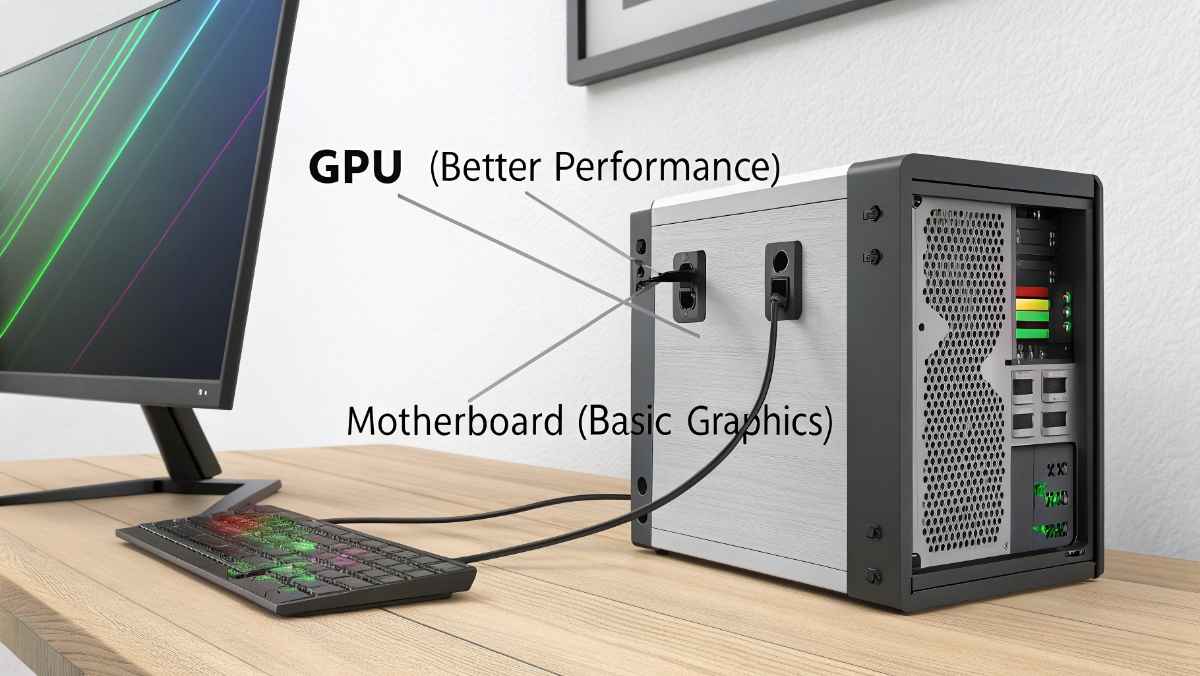
When setting up a desktop computer, one common question people ask is simple: Where should I plug my monitor — into the GPU or the motherboard?
It may look like a small detail, but this choice can affect your computer’s performance, graphics quality, and overall experience.
In this guide, we’ll explain everything in easy English so you can understand what to do and why it matters.
In most cases, it is better to connect your monitor to the GPU (graphics card).
Why? Because a GPU is built to handle graphics better than a motherboard’s built-in system.
But there are a few situations where using the motherboard makes sense. Let’s break it down step by step.
Before deciding where to plug your monitor, you need to know what each option actually does.
A GPU is a separate hardware part inside your computer. It is designed to handle:
- Gaming graphics
- Video editing
- 3D rendering
- High-resolution displays
It has its own memory and processing power.
The motherboard itself does not create graphics. Instead, it uses integrated graphics from the CPU (processor).
This means:
- No separate graphics card is used
- Graphics are handled by the processor
- Performance is usually lower than a dedicated GPU
Here’s the simple difference:
| Feature | GPU | Motherboard |
| Performance | High | Basic |
| Gaming | Excellent | Limited |
| Video Editing | Smooth | Slow |
| Multi-Monitor Support | Better | Limited |
| Power | Uses more | Uses less |
So, if your PC has a GPU, it is usually the better choice.
Let’s look at the main reasons.
A dedicated GPU is built for graphics. It can handle:
- High FPS gaming
- 4K videos
- Heavy applications
If you connect your monitor to the motherboard instead, you are not using your GPU’s power.
If you play games, this is very important.
Connecting to GPU gives:
- Smoother gameplay
- Better graphics quality
- Higher frame rates
Connecting to motherboard may cause:
- Lag
- Low FPS
- Poor visuals
Modern monitors (like 144Hz or 240Hz) need strong output.
GPU ports support:
- High refresh rates
- Advanced display tech
Motherboard ports often cannot handle this properly.
If you do:
- Video editing
- Graphic design
- Animation
Then GPU is a must.
It makes work faster and smoother.
GPUs usually have:
- More ports
- Better multi-display support
If you use 2 or more screens, GPU is the better choice.
There are some cases where using the motherboard is okay.
If your PC does not have a graphics card, you must use the motherboard port.
If you only use your PC for:
- Browsing
- Watching videos
- Office work
Then integrated graphics is enough.
Sometimes, if your GPU is not working, you can connect to the motherboard to check:
- If the system boots
- If GPU is faulty
Integrated graphics use less power. Some people prefer it for simple work.
Many people install a GPU but still plug the monitor into the motherboard.
This causes:
- GPU not being used
- Poor performance
- Confusion about low FPS
Always double-check where your cable is connected.
Here’s a simple trick:
- Located lower on the back of the PC
- Horizontal layout
- Usually include HDMI, DisplayPort, or DVI
- Located near USB ports and audio jacks
- Higher on the back panel
If your cable is plugged near the bottom → it’s GPU
If near the top → it’s motherboard
Some systems allow using both GPU and motherboard outputs.
But this depends on:
- CPU support
- BIOS settings
Even if it works, it is not always recommended unless you know what you are doing.
Yes, a lot.
If you connect to motherboard:
- FPS can drop heavily
- GPU power is wasted
If you connect to GPU:
- You get full performance
Laptops are different.
Most laptops:
- Automatically switch between integrated and dedicated graphics
- Do not require manual connection
So this question mainly applies to desktop PCs.
If you are connecting to GPU, you might see different ports.
- Common and easy
- Good for normal use
- Better for gaming
- Supports higher refresh rates
If your monitor supports it, DisplayPort is usually the better option.
Sometimes, even after connecting to GPU, there is no display.
Try these steps:
- Check cable properly
- Try different port (HDMI/DP)
- Update drivers
- Reseat GPU
- Check power cables
If still not working, use motherboard port temporarily to troubleshoot.
In some systems, integrated graphics are disabled when a GPU is installed.
If you want to use both:
- Go to BIOS
- Enable integrated graphics
But again, this is only for special setups.
If you have a strong GPU, you usually don’t need integrated graphics.
But you can keep it enabled if:
- You want backup display
- You use multiple monitors
Let’s say you bought a gaming PC with a powerful GPU.
If you connect your monitor to the motherboard:
- Games may run at 20–30 FPS
If you connect to GPU:
- Same games may run at 60–120 FPS
That’s a huge difference just from changing the cable position.
So, is it better to connect your monitor to GPU or motherboard?
👉 Yes — connecting to GPU is almost always better.
Use GPU if:
- You have a graphics card
- You play games
- You edit videos
- You want the best performance
Use motherboard only if:
- You don’t have a GPU
- You are doing basic tasks
- You are troubleshooting
Choosing the right port for your monitor is simple but important.
Many people ignore this and end up not using their computer’s full power.
Just remember:
👉 If your PC has a GPU, always connect your monitor to it.
This small step can improve your experience in a big way.